This guide shows you how to open the AI Assistant, ask your first question, attach documents and run a routine.
Step 1: Open the AI Assistant
Click AI Assistant in the left-hand menu.
Don't see AI Assistant? Your admin hasn't given you access yet, or the feature isn't enabled for your organisation. Ask your Organisation Admin.
Step 2: Get to know the screen
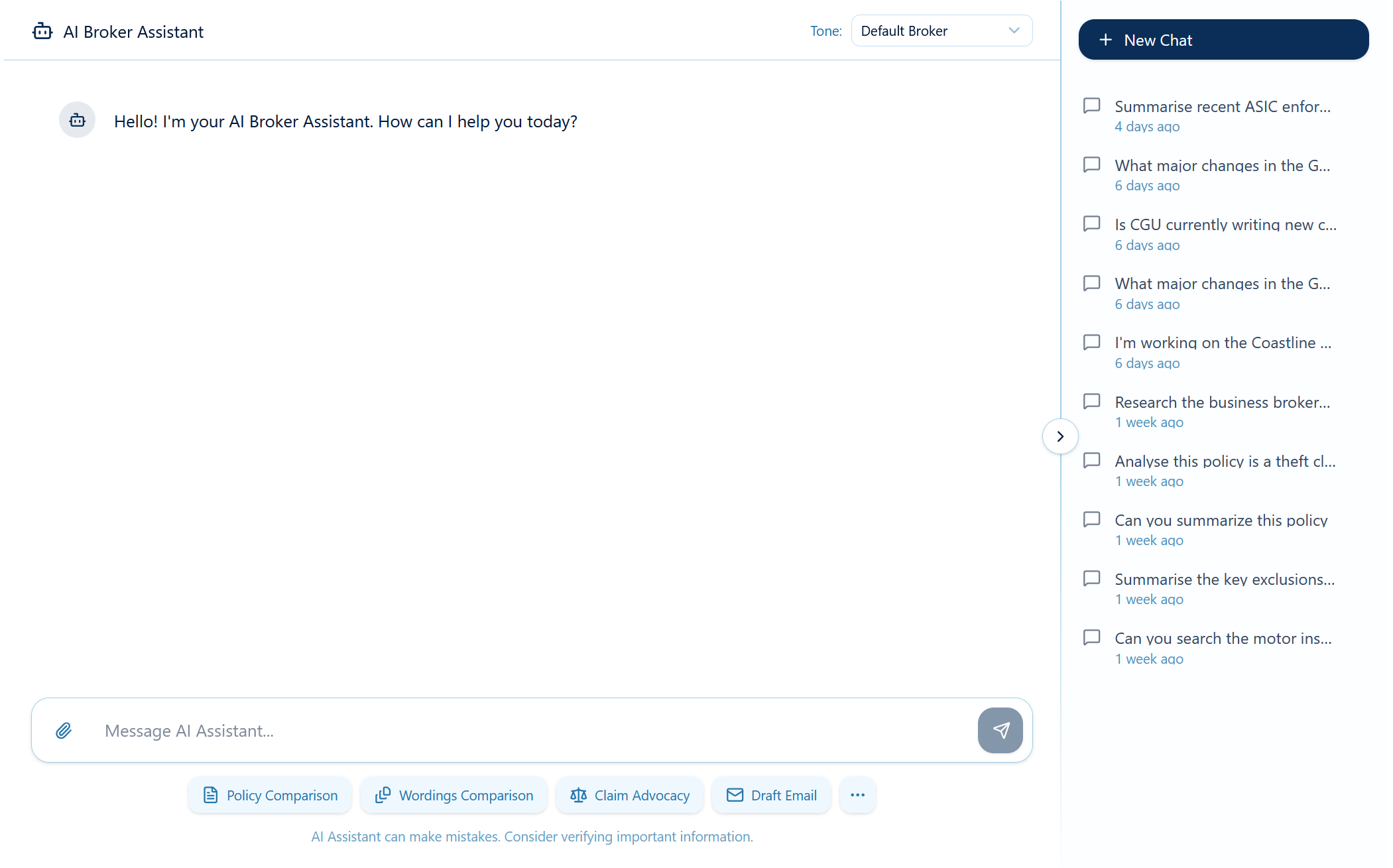
- Conversation list (left): New Chat starts a fresh conversation. Your recent conversations are listed below it.
- Tone (top right): choose how the Assistant writes, e.g. Default Broker, Corporate, Casual or your organisation's custom tone.
- Message box (bottom): type your question here. The paperclip attaches files.
- Routine buttons (under the message box): shortcuts to guided workflows. Click … to see every routine.
Step 3: Ask your first question
- Type your question in the message box.
- Press Enter to send. Press Shift + Enter for a new line.
Try: "Explain the difference between an occurrence-based and a claims-made liability policy, in plain English I could use with a client."
Step 4: Attach documents
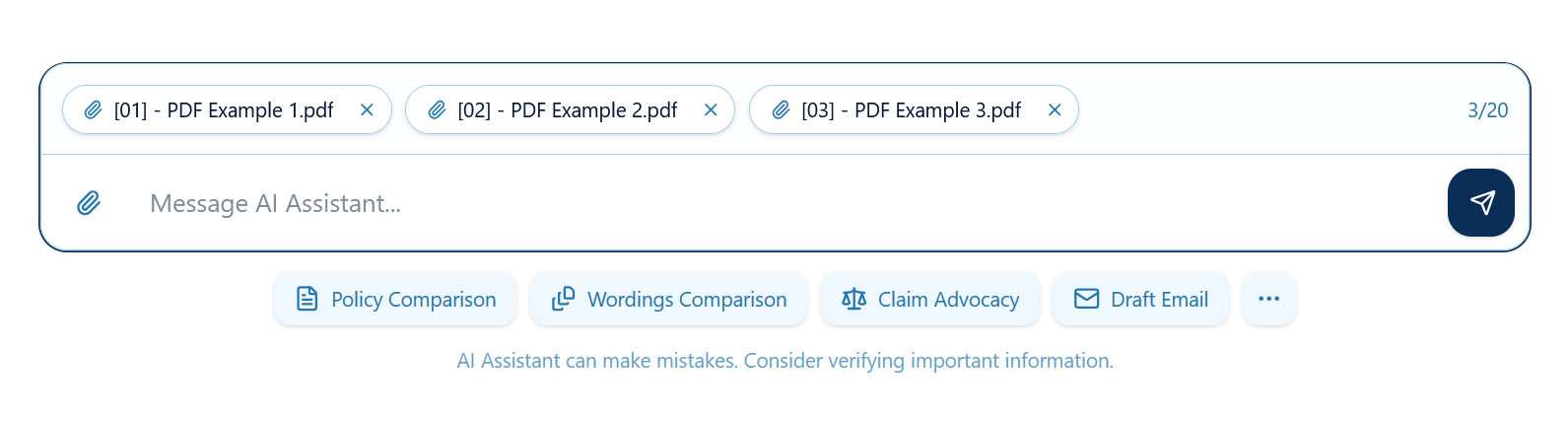
- Click the paperclip, or drag and drop files onto the chat window.
- You can attach up to 20 files per message.
- Supported files include PDF, Word (.docx), Excel (.xlsx), PowerPoint (.pptx), Outlook emails (.msg/.eml), images, and audio/video. See Attaching Files & Supported File Types.
Step 5: Run a routine
- Click a routine button under the message box (e.g. Policy Comparison), or click … to open the Routine Catalog.
- Fill in each step and upload the requested documents. Click Continue to move on.
- On the last step, click Finalise, check the Review screen, then click Start.
Step 6: Use the answer
- Copy: the copy button under a response copies it with formatting, ready to paste into an email or your broking system.
- Download: when the Assistant creates a Word, Excel or PDF document, a document card appears in the chat. Click it to download.
- Choice buttons: sometimes the Assistant offers options as buttons. Clicking one fills in your reply.
- Follow up: ask it to shorten, reformat or explain. It remembers the rest of the conversation.
Step 7: Personalise
- Favourite routines: in the Routine Catalog, click the ⭐ on up to 4 routines to pin them to your quick buttons.
- My Tone: if your admin allows it, create your own writing style under Settings → AI Assistant → My Tone.
- My Styles: adjust the look of your generated Word documents under Settings → General → My Styles, if your admin allows overrides.
Good habits
- Use one conversation per client or task. Long conversations get slower and eventually hit size limits.
- Tell the Assistant what each attachment is ("the first PDF is the current policy, the second is the new quote").
- Always check the output, especially figures, limits and exclusions, before sending it to anyone.
Was this article helpful?
That’s Great!
Thank you for your feedback
Sorry! We couldn't be helpful
Thank you for your feedback
Feedback sent
We appreciate your effort and will try to fix the article