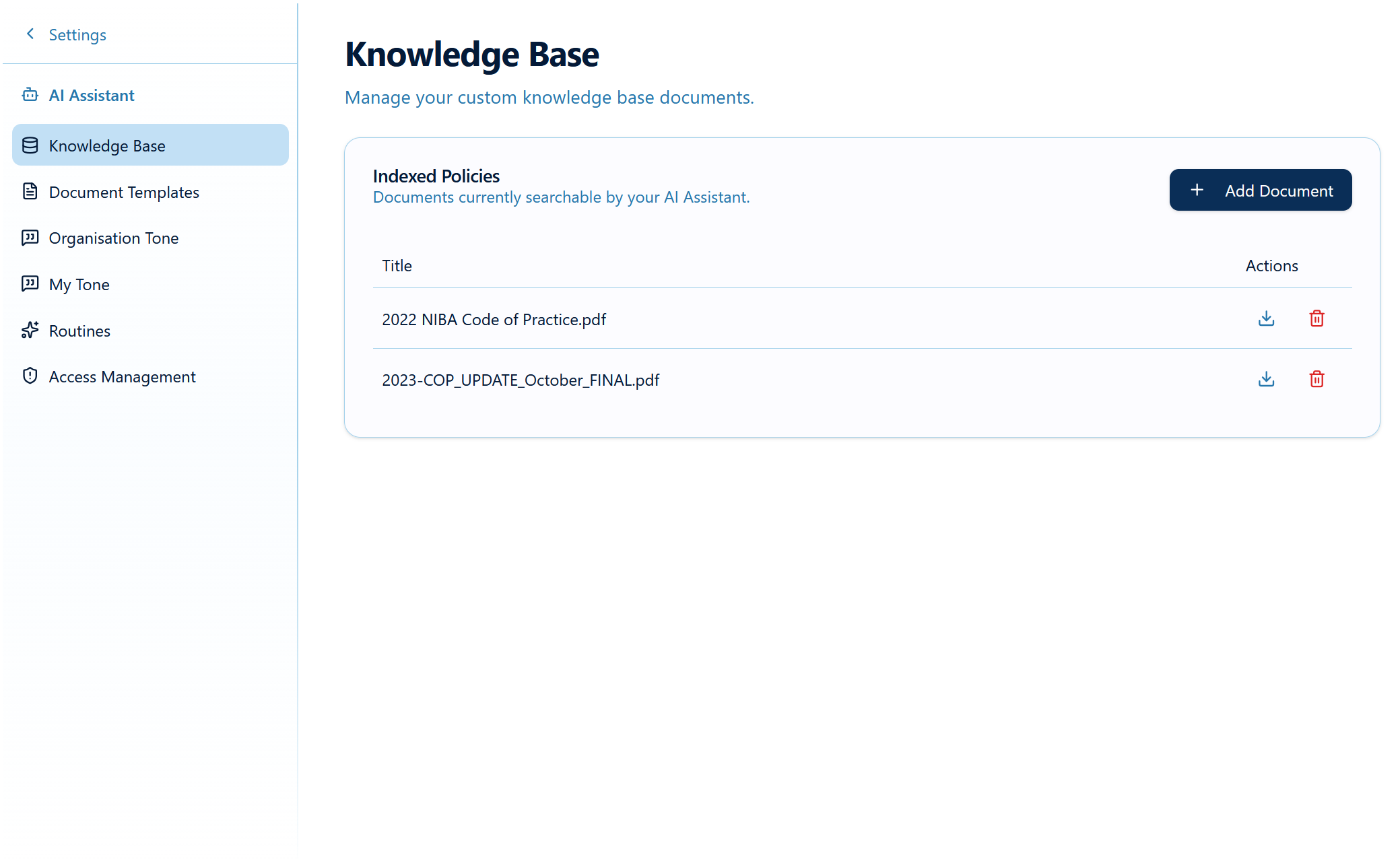
The Knowledge Base is your organisation's shared library of reference documents. Once a document is uploaded, the Assistant can search it when any user in your organisation asks a question, so nobody needs to attach it each time.
What to upload
| Good for the Knowledge Base | Better attached to a conversation |
|---|---|
|
|
Every user in your organisation can search Knowledge Base documents. Don't upload client-specific or confidential documents.
How to add a document
- Go to Settings → AI Assistant → Knowledge Base.
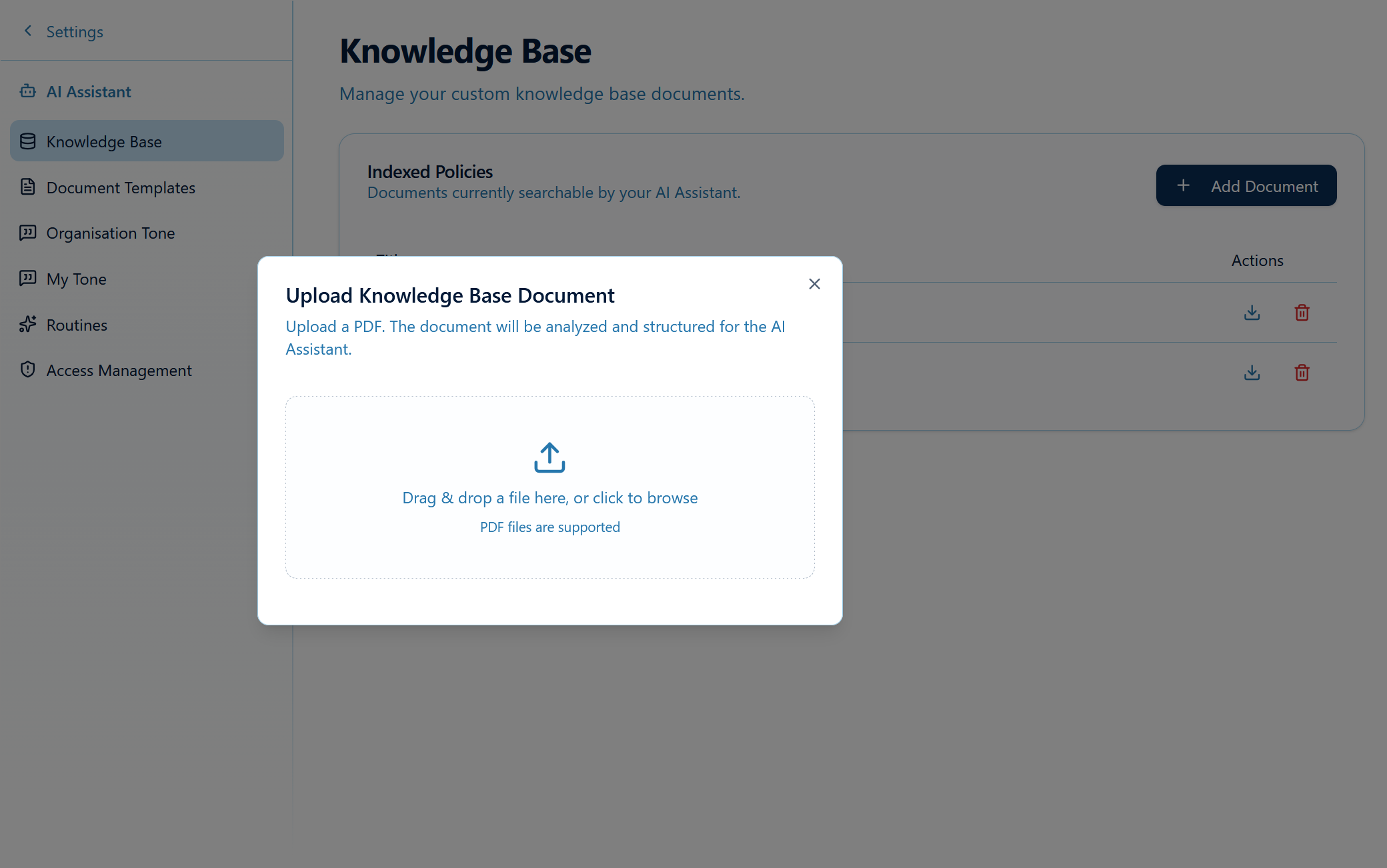
- Click Add Document.
- Drag in a PDF or click to browse. One file uploads at a time.
- Wait while Brokernote uploads the file and then shows "Extracting structure and indexing document". This can take up to 30 seconds. Keep the window open.
- When you see "Document successfully indexed!", the document appears in the Indexed Policies list and the Assistant can use it.
Viewing, replacing and deleting documents
- View: click the download icon next to a document to open it.
- Delete: click the red bin icon and confirm. The Assistant stops using it straight away.
- Replace with a newer version: delete the old document, then upload the new one. There is no "update" option, so remove superseded wordings so the Assistant can't quote an old version.
Tips for good results
- Use clear file names, e.g.
Insurer-X Business Pack PDS 2026-07.pdf. The file name becomes the document title. - Use text-based PDFs where you can. PDFs exported from Word or downloaded from the insurer are better than photos or scans.
- Only PDF is accepted. Save Word or Excel files as PDF first.
- Keep it current. Review it each quarter and delete anything out of date.
How users use the Knowledge Base
Users don't need to do anything special, but mentioning it in the prompt helps:
- "Using our Knowledge Base, what is our process for lodging a motor claim?"
- "Check our Knowledge Base: does the Insurer X Trades PDS cover tools stolen from an unlocked ute?"
When the Assistant uses a Knowledge Base document, it can link to the source document so you can check it. See Sources, References & Web Search.
Was this article helpful?
That’s Great!
Thank you for your feedback
Sorry! We couldn't be helpful
Thank you for your feedback
Feedback sent
We appreciate your effort and will try to fix the article