Tone of Voice controls how the Assistant writes: how formal it is, sentence length, greetings and sign-offs. It doesn't change the facts in an answer.
Tone options in the chat
Pick a tone from the Tone dropdown at the top right of the AI Assistant.
| Tone | Best for |
|---|---|
| Default Broker | Everyday professional broking work. |
| Corporate | Formal correspondence with insurers, underwriters or large corporate clients. |
| Casual | Friendly messages to long-standing personal lines or small business clients. |
| Organisation Custom | Your firm's own voice, learned from your emails. Only shown once an admin creates it. |
| Personal Custom | Your own writing style. Only shown if your admin allows personal tones and you've created one. |
Create your Organisation Tone (Admin)
- Go to Settings → AI Assistant → Organisation Tone.
- In Text Samples, paste 2–3 examples of emails or letters your firm has sent.
- Put
---on its own line between samples. - Click Generate Tone Profile. When it's done, an Active Tone Profile banner appears.
Example of the Text Samples box:
Hi Tom,
Thanks for sending through the updated asset list. I've passed it to the underwriter and will come back to you by Thursday with the revised premium.
Cheers, Jess --- Dear Ms Nguyen,
Please find attached your renewal documents for the 2026/27 period. We have highlighted two changes to your cover on page 2 that we recommend you review...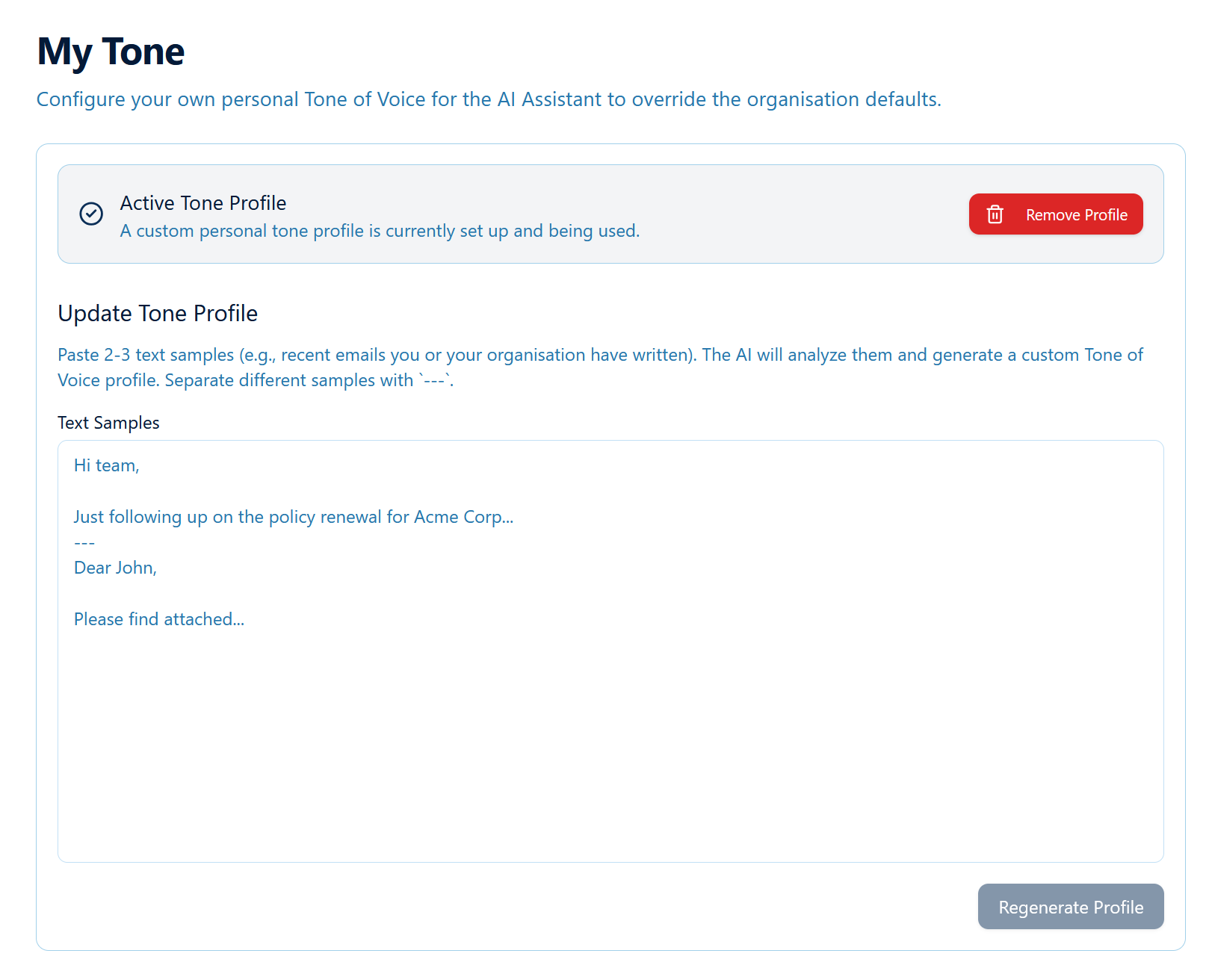
Allow users to create their own tone (Admin)
On the Organisation Tone page, turn on Allow Personal Tone Profiles. Users will then see My Tone in their settings. If you turn it off later, anyone using Personal Custom is switched back to Default Broker.
Create your personal tone (Users)
- Go to Settings → AI Assistant → My Tone.
- Paste 2–3 of your own emails, separated by
---. - Click Generate Tone Profile.
- In the chat, choose Personal Custom from the Tone dropdown.
Updating or removing a tone
- Update: paste new samples and click Regenerate Profile. The new profile replaces the old one.
- Remove: click Remove Profile on the Active Tone Profile banner.
Tips for good samples
- Use real emails that sound like you at your best, not templates.
- Mix the types, e.g. one to a client and one to an insurer.
- Remove client names, policy numbers and personal details before pasting.
- 2–3 medium-length samples work better than one very short one.
Was this article helpful?
That’s Great!
Thank you for your feedback
Sorry! We couldn't be helpful
Thank you for your feedback
Feedback sent
We appreciate your effort and will try to fix the article